Key points
- Apple TV 4K gives one of the smoothest IPTV experiences
- Players come from the App Store
- One standard plan plays on one screen at a time
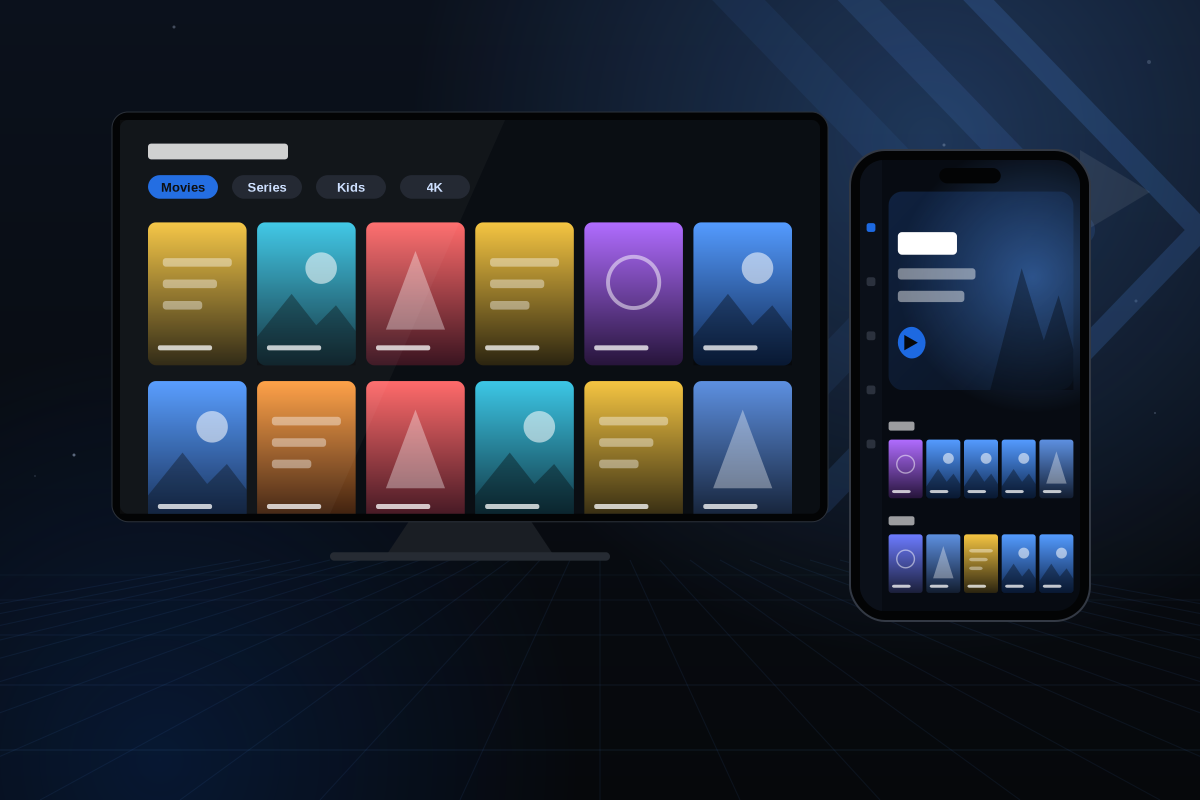
Apple devices are quick, stable and good at keeping a clean picture during fast sport. TrimixIPTV works on Apple TV HD, Apple TV 4K, iPhone and iPad, using a player app from the App Store.
Before you begin
- Update to the latest tvOS or iOS in Settings › General › Software Update.
- Have your Apple ID ready to download apps.
- Keep your TrimixIPTV login from WhatsApp nearby.
Install a player
- Open the App Store on your Apple TV, iPhone or iPad.
- Search for the player we recommend and download it.
- Open it and choose to add a new playlist or account.
Sign in
- Select the Xtream Codes option if available, or paste the M3U link.
- Type the server address, username and password. On Apple TV, the iPhone keyboard prompt saves a lot of time.
- Save and let the channels and guide load.
Using several Apple devices
Some players sync your favourites across Apple TV, iPhone and iPad through iCloud. You can install TrimixIPTV on all of them, but a standard plan plays on one at a time. For several at once, see multi-screen plans.
Best picture on Apple TV
- Turn on Match Content › Match Frame Rate under Settings › Video and Audio.
- Use the Ethernet port on Apple TV 4K models that have one.
- Set the correct time zone so the guide lines up.
Questions? Message us on WhatsApp and we will help.